
Software that feels intentional.
Emerald is the default, but twelve curated palettes let every user personalize the shell. A playful icon rail puts search, taskboard, calendar, notes, chat, files, and settings one click away — while collapsible summary strips and glass panels keep enterprise density without enterprise drab.
Luxury UI is the deliberate craft layer on top of enterprise workflows — twelve palettes, glass panels, sticky gradient headers, icon rail shortcuts, collapsible summary strips, multi-step create wizards, and an assist dock for help and feedback. The interface guide documents each shell element so admins explain where search, taskboard, and palette live on day one.
Enterprise density. Consumer-grade craft.
Glass panels, emerald gradients, playful icon rail, collapsible analytics, and twelve curated palettes with mobile sync.
- 12 theme palettes with mobile sync
- Assist dock for help and feedback
- SHOW · SORT · Filter on every register
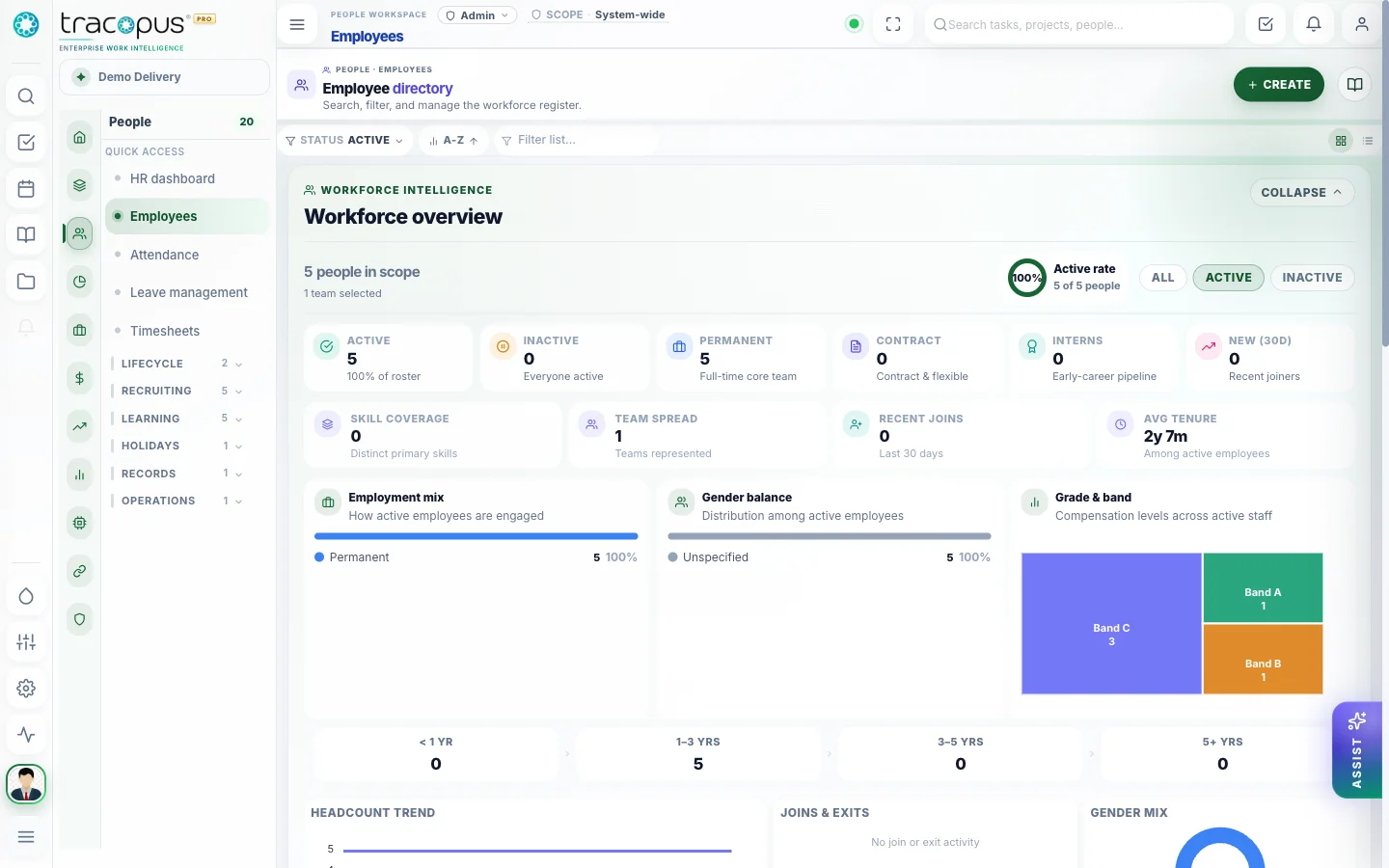
Icon rail, collapsible analytics strip, and twelve theme palettes.
What breaks when work lives in disconnected tools.
Point solutions optimize one department while the enterprise loses traceability — approvals stall, payroll exceptions surface late, revenue leaks between delivery and finance, and leaders reconcile exports instead of drilling from insight to source record.
- Friction 01
Enterprise drab kills adoption
Teams resist tools that look like punishment — adoption suffers before features matter. Luxury UI with curated palettes, glass panels, and intentional micro-interactions signals that daily work deserves a crafted experience, not a spreadsheet with buttons.
- Friction 02
Hidden navigation slows daily work
Critical actions buried in hamburger menus slow register workflows — timesheet, taskboard, and approvals should be one click away via the persistent icon rail, not three levels deep in module sidebars operators rarely memorize.
- Friction 03
Analytics clutter on list screens
Always-on chart rows steal register space from the work itself. Collapsible summary strips let managers expand analytics for weekly review, then collapse for focused execution — the right tradeoff between visibility and density.
What changes when teams run on one layer.
Measurable improvements across delivery, workforce, finance, and governance — not feature checklists, but operational outcomes your teams can verify in daily work.
- Twelve documented theme palettes with mobile sync
- Persistent icon rail for cross-module shortcuts
- SHOW · SORT · Filter on every list register
- Assist dock linking to Help Center search
Software that feels intentional
Twelve palettes, icon rail, summary strips, global search, wizards, and assist dock — enterprise density without enterprise drab.
Curated palettes
Twelve luxury color systems documented in the interface guide — emerald default with indigo, sapphire, rose, and more.
Icon rail
Search, taskboard, calendar, notes, chat, files, palette picker, settings — persistent one-click access.
Summary strip toggle
Expand or collapse analytics rows on list screens; preference persists for the session.
Global search
Cross-module query for projects, tasks, employees, and files — scoped to team and permissions.
Module sidebar
HRMS, Sales, Project expand to show only routes your role template allows.
Micro-interactions
Smooth transitions, glass panels, sticky gradient header, and assist dock for help and feedback.
Responsive layout
Collapsible sidebar and register layouts adapt from wide portfolio views to focused mobile widths.
Create wizards
Multi-step flows for employees, bids, projects, and purchase orders — consistent stepper pattern.
How work moves through Tracopus
Personalize your shell
First-session setup from interface guide.
- 1Choose palette from icon rail picker
- 2Pin taskboard and calendar shortcuts
- 3Toggle summary strip expanded for weekly review
- 4Open Help Center from assist dock
Questions for this module
What teams usually ask before rolling this area out.
How many palettes are available?
Twelve curated luxury color systems — documented in the interface guide with mobile sync after login.
Where is global search?
Icon rail and header search — indexes projects, tasks, employees, and files scoped to permissions.
One Operating Layer. Every Enterprise Workflow.
Bring workspace, people, projects, resources, finance, payroll, performance, analytics, AI agents, integrations, and admin governance into one persona-aware luxury platform.